How to Connect Your POS to Jaicome KDS (No Integration Needed)
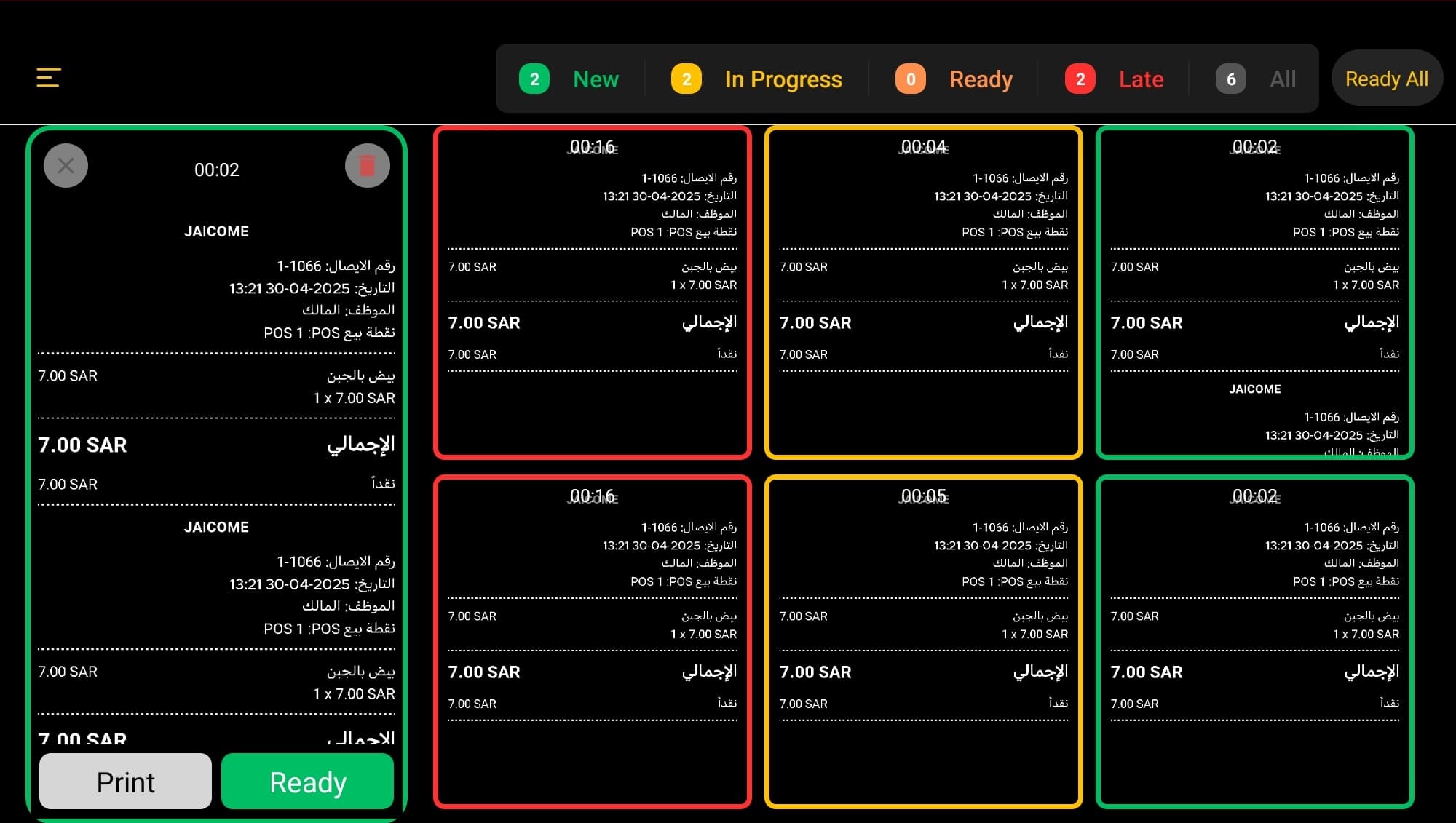
Key takeaways:
- Jaicome KDS is not an integration — your POS already knows how to print, and Jaicome KDS simply looks like a printer.
- Setup takes about 3 minutes on a single tablet, with no developer and no contract.
- It works with Square, Loyverse, Foodics, LazyWait and any POS that can print to an Epson TM-m30.
When people hear "kitchen display system," they brace for an IT project — new hardware, a developer, a long onboarding, maybe a contract. Jaicome KDS is the opposite. If your POS can print a kitchen ticket, it can already talk to Jaicome KDS. You're not integrating two systems. You're just pointing your POS at a screen instead of a printer.
Here's exactly how to do it.
What you'll need
- Any tablet (iPad or Android) with the Jaicome KDS app installed.
- Your existing POS — nothing changes about how you take orders.
- Both devices on the same Wi-Fi network.
That's the whole shopping list. No cables to the POS, no server, no account to create.
Step 1 — Open Jaicome KDS on your tablet
Install Jaicome KDS from the App Store or Google Play, open it, and mount the tablet where your line can see it. On first launch it shows a short connection guide and the device's network address — keep that screen handy for the next step.
Because Jaicome KDS is local-first, there's nothing to sign up for and nothing in the cloud. Everything lives on the tablet.
Step 2 — Add Jaicome KDS as a "printer" in your POS
In your POS, go to where you'd normally add a kitchen printer and add a new network/LAN printer. When it asks for an address, give it the one shown on the KDS screen (port 9100). Many POS systems will even discover the screen automatically — it identifies itself as an Epson TM-m30, so it appears in the printer list like any other.
A few quick notes by POS:
- Square — Add a printer under Settings → Hardware → Printers, choose the network printer, and assign your kitchen categories to it.
- Loyverse — Settings → Printers → Add printer, select the KDS on the network, and tick the categories it should receive.
- Foodics / LazyWait — Add a kitchen printer for the relevant station and point it at the KDS address.
If you've ever set up a kitchen printer before, this is the exact same flow — just with a screen at the other end.
Step 3 — Fire a test order
Ring up a test order and send it to the kitchen. Within a second, the ticket appears on the Jaicome KDS board, colour-coded and counting up. Bump it to clear it. That's it — you're live.
If a ticket doesn't appear
Ninety-nine percent of the time it's the network. Quick checks:
- Confirm the tablet and POS are on the same Wi-Fi (not a guest network).
- Re-open the printer settings in your POS and re-scan for the device.
- Make sure nothing on the router is blocking local device-to-device traffic.
Still stuck? Our team can hop on and have you running in minutes — there's a contact link in the app.
The takeaway
No middleware. No developer. No contract. Jaicome KDS slots into the workflow you already have and starts catching orders the moment they're rung up — and because everything runs on the device, it keeps working even if your internet doesn't.
Ready to set it up? Explore Jaicome KDS →